# Card issuance
## Guide
To start issuing cards, the Prepaid Card payment method needs to be enabled. Speak to our sales or support team on how to get [Cards](https://docs.zumrails.com/tokenization) enabled.
{% stepper %}
{% step %}
### Prerequisite
* [ ] Get the Prepaid Card payment method enabled. Our Zūm Rails team will get your account ready for testing
* [ ] Make sure you have a sandbox account for testing and read the developer quick start as [described here](https://docs.zumrails.com/getting-started/quickstart)
* [ ] Get the API username and password in the sandbox portal as [described here](https://docs.zumrails.com/getting-started/your-zum-rails-account#get-access-to-api-credentials) for API access
* [ ] Get your funding source ID. You can find this information in your portal under settings/funding source page or via API, as [described here](https://docs.zumrails.com/api-reference/funding-source)
* [ ] Get your wallet ID. You can find this information in your portal under the wallet page or via API, as [described here](https://docs.zumrails.com/api-reference/wallets)
{% endstep %}
{% step %}
### Authenticate with Zūm APIs
Authenticate with the Zūm Rails API as indicated below, or view more details [here](https://docs.zumrails.com/api-reference/authentication)
```
Endpoint: /api/authenticate
Method: POST
```
```json
{
"Username": "abc...123",
"Password": "xyz...321"
}
```
{% endstep %}
{% step %}
### Cardholder Onboarding (IDV and KYC)
Zūm Rails requires Identity Verification (IDV) to meet KYC standards before a card can be issued.
* To onboard via public URL: In the Zūm Portal, you can access your Card Onboarding URL to send directly to your prospect cardholders in the Settings --> Integration Codes page
* To onboard via [Card Onboarding](https://docs.zumrails.com/tokenization-1/zum-connect#card-onboarding) Hosted Link/SDK (Integrated):
1. Create a Connect Token: Call `POST /api/connect/createtoken` and set the `ConnectTokenType` to `"CardOnboarding"`.
2. Initialize the SDK: Embed the Zūm Connect iFrame or SDK into your application using this token.
{% hint style="info" %}
To help streamline the Zūm Connect experience, it is possible to pass pre-filled information that you already have through [optional parameters](https://docs.zumrails.com/tokenization-1/zum-connect#pre-filling-the-form) in the url
{% endhint %}
The prospect cardholder completes the Card Onboarding three-step flow:
* Profile Setup: full name, email, date of birth, and phone number.
* One-Time Passcode: sent to their email
* ID Verification: address inout, a selfie, Government ID upload, and occupation details.
Once the prospect cardholder has completed the onboarding flow, a [User](https://docs.zumrails.com/api-reference/users) will be created at Zūm Rails. You have to store the Zūm Rails UserID, received in the response of the API call or [event listener](https://app.gitbook.com/o/IQl2ha3gVKVmEtOjmYfE/s/KJSaSy1sLkMkigNL7ONH/~/edit/~/changes/150/tokenization-1/zum-connect#event-listener-2). In addition, you can enable [email notifications](https://docs.zumrails.com/tokenization/how-it-works#identity-verification) and [card webhook](https://docs.zumrails.com/api-reference/webhooks#card-webhook) to keep you updated on the IDV status.
{% endstep %}
{% step %}
### Card Issuance
Once the user has completed the onboarding flow and passed the identity check, the card can be issued.
* Zūm Portal: Navigate to the User page and search for the user in the portal. If the card KYC is "Approved", you will see an option under the 3 Dots menu to approve and issue the card manually.
* Zūm API: Call the [Approve Card](https://docs.zumrails.com/api-reference/users#approve-card) endpoint in the User API. If the response is successful, it verifies that the KYC is complete and a card will be issued to the user
{% endstep %}
{% step %}
### Card Activation
Newly issued cards start in an `IssuedInactive` status.
* Zūm Portal: Navigate to the User --> Manage Prepaid Card --> Card Status Change --> set to "Activate"
* Zūm API: Use the Activate Card endpoint: `PATCH {{env}}/api/card/activate-card/{{userId}}`.
You can verify the status at any time on the Zūm Portal by navigate to the User --> Manage Prepaid Card --> see Card Status or by calling `GET {{env}}/api/card/get-card-status/{{userId}}`.
{% endstep %}
{% step %}
### Funding the Card
Cards must be funded through the Zūm Wallet ecosystem before they can be used and there are three ways.
* **Customer Funding via Zūm API:** Use the Transaction API to move funds from the [Wallet](https://docs.zumrails.com/api-reference/wallets) to the specific card using the transaction endpoints. You can create a transaction like the example below for loading a prepaid card:
```
Endpoint: /api/transaction
Method: POST
```
```json
{
"Amount": 10.0,
"ZumRailsType": "LoadCard",
"TransactionMethod": "PrepaidCard",
"Memo": "",
"Comment": "",
"WalletId": "1d431e8b-...85452adb4eee",
"UserId": "8ebd932b-...b92633e14297"
}
```
* **Customer Funding via Zūm Portal:** Navigate to the Transactions page --> Add new --> select the Load Prepaid Card under the Transaction Type
* **Cardholder Funding via Zūm Connect:** This allows the cardholder to use any of the other enabled Zūm Rails [Payment Rails](https://docs.zumrails.com/payments/payment-rails) to fund their card.
* Create a Connect Token: Call `POST /api/connect/createtoken` and set the `ConnectTokenType` to `"CardFundingCheckout"`.
* Initialize the SDK: Embed the Zūm Connect iFrame or SDK into your application using this token.
{% hint style="info" %}
For Customer Funding, funds must first be deposited into the Zūm Rails platform. Create a transaction to fund the wallet from your funding source. A funding source is your operating bank account from your business with your bank. Make sure you inform the FundingSourceId and the WalletId in the payload, as well as the amount that will be enough to fund the prepaid cards.
{% endhint %}
{% endstep %}
{% step %}
### Receive card updates
The recommended way to receive card updates is through webhooks.
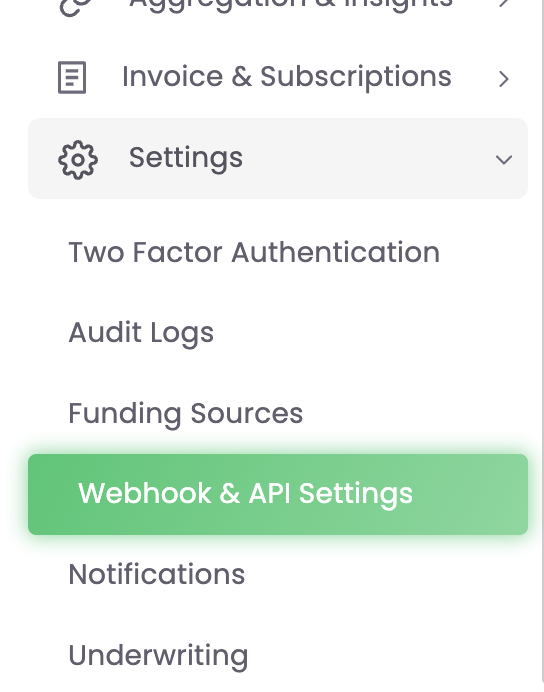
You can configure your webhook URL and which events you might want to receive in the Zūm Rails portal, under settings/webhook and api settings.
We recommend setting up all available prepaid card events events.
When the card onboard status changes, card status changes and financial transaction activity occurs, we will post to your webhook URL with relevant payload, as [described here](https://docs.zumrails.com/api-reference/transactions#get-a-specific-transaction)
{% endstep %}
{% endstepper %}