# How it Works

## Authentication

All API requests use the Bearer Token Authorization. See [Authentication](https://docs.zumrails.com/api-reference/authentication) for details.

## Identity Verification

Zūm Rails' card onboarding platform collects the required information from the cardholder, including personal details and verification documents such as a valid government-issued ID, proof of address, or other supporting documentation.

The onboarding platform is a web form hosted by Zūm Rails that handles the collection of identity verification information from card applicants. You can use our hosted card onboarding URL or integrate the process into your application’s embedded flow using our SDK. See [Zum Connect](https://docs.zumrails.com/tokenization-1/zum-connect) for integration details.

**Identity Verification Process**\
Below is the two-step identity verification flow required to meet Zūm Rails’ KYC requirements:

1. **Profile Setup** – Collects the applicant’s full name, email address, and phone number.
2. **ID Verification** – Includes address collection, a selfie, upload of a valid government-issued ID, and occupation information.
   1. Address provided is used as the Shipping Address and Billing Address

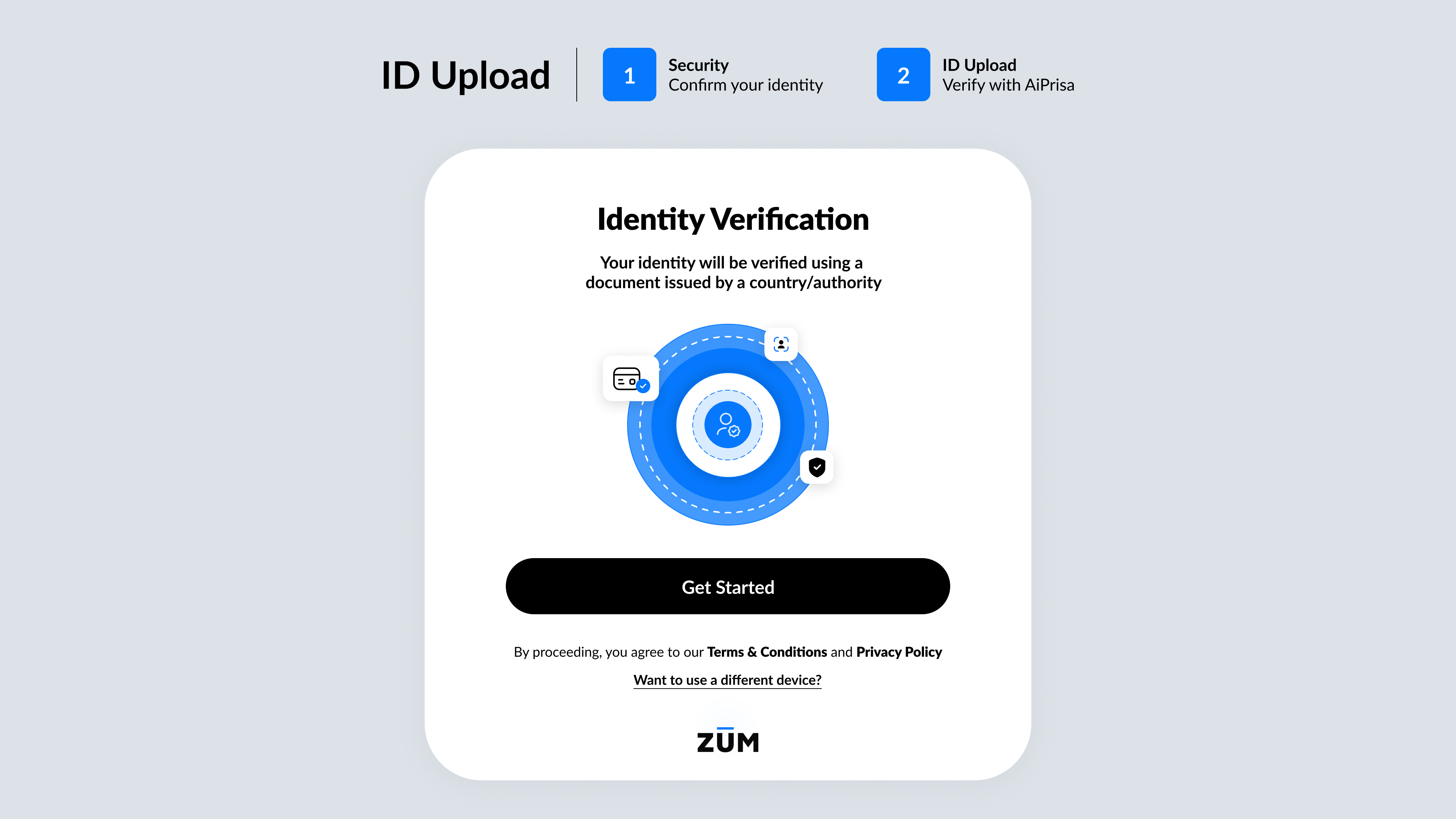
Here’s a preview of the form used in Zūm Rails’ sample integration:

<figure><img src="https://1258268478-files.gitbook.io/~/files/v0/b/gitbook-x-prod.appspot.com/o/spaces%2FKJSaSy1sLkMkigNL7ONH%2Fuploads%2FuYdJTripoS2GKee7yB0z%2FZum-ID%20Upload.png?alt=media&#x26;token=4bcd0203-30b3-4a58-adbc-e786cf64635d" alt=""><figcaption></figcaption></figure>

#### How to access your unique card onboarding URL/SDK

* Navigate to Settings → Integration Codes page
* For the URL, click on the Embedded Codes tab and locate the Card Onboarding banner to find your unique card onboarding URL
* For SDK, click on the JavaScript SDK and locate the Card Onboarding banner to find the “ConnectTokenType”: “Card Onboarding”

#### How to customize your card onboarding URL/SDK

* Navigate to Settings → Brand Customization to customize the visual appearance of the form and logo. You must provide the name, color, and icon of your brand.&#x20;

#### Available notifications and webhooks

* After the card applicant completes the card onboarding flow, based on your configuration and level of integration, if applicable, the following will occur:

{% tabs %}
{% tab title="Emails from Zum Rails" %}

<table><thead><tr><th width="179.4000244140625">Email(s) To</th><th>Reason for Email(s)</th></tr></thead><tbody><tr><td>Customer</td><td>Notification of card application submitted, approved, under review and declined</td></tr><tr><td>Cardholder</td><td>Notification of card application submitted, approved, under review and declined</td></tr></tbody></table>
{% endtab %}

{% tab title="Webhooks" %}

| PrepaidCardOnboarding | InProgress  | Webhook call for user submitted card application                                 |
| --------------------- | ----------- | -------------------------------------------------------------------------------- |
| PrepaidCardOnboarding | Approved    | Webhook call for user KYC card application is approved and pending card issuance |
| PrepaidCardOnboarding | UnderReview | Webhook call for user card application is under review                           |
| PrepaidCardOnboarding | Declined    | Webhook call for user card application is declined                               |
| {% endtab %}          |             |                                                                                  |
| {% endtabs %}         |             |                                                                                  |

## Card Issuance

Upon receiving card application has passed the identify verification, a Partner and Customer can approve the card on the Zūm Rails portal on the Users page or with the [Approve Card](https://docs.zumrails.com/api-reference/users#approve-card) endpoint in the [Users API](https://docs.zumrails.com/api-reference/users). This endpoint is used when the identity verification process has been completed and the card applicant has passed verification.

#### Available notifications and webhooks

If you have the configuration, the following emails will be sent.

{% tabs %}
{% tab title="Emails from Zum Rails" %}

<table><thead><tr><th width="179.4000244140625">Email(s) To</th><th>Reason for Email(s)</th></tr></thead><tbody><tr><td>Customer</td><td>Notification of card is issued successfully</td></tr><tr><td>Cardholder</td><td>Notification of card is issued successfully</td></tr></tbody></table>
{% endtab %}

{% tab title="Webhooks" %}

| Type                  | Event      | Description                                         |
| --------------------- | ---------- | --------------------------------------------------- |
| PrepaidCardOnboarding | CardIssued | Webhook call for user’s card is issued successfully |
| {% endtab %}          |            |                                                     |
| {% endtabs %}         |            |                                                     |

## Card Management

### Display full card details

You can use our [View Card Information](https://docs.zumrails.com/tokenization-1/zum-connect#view-prepaid-card-details) SDK to display the sensitive data of your issued cards on your application.

Go to Settings → Integration Codes → JavaScript SDK to locate the View Card Information banner to find the “ConnectTokenType”: “ViewCardInformation”

### Add a new card to a user

If your user has an existing card and wants a new card, you can use the [Reissue Card](https://docs.zumrails.com/api-reference/cards#reissue-card) endpoint in the [Card API](https://docs.zumrails.com/api-reference/cards) to create a new card and attach it to your user. The old card will be detached from our database but you can still access the information via [Get Card Accounts](https://docs.zumrails.com/api-reference/cards#get-card-accounts) endpoint in the [Cards API](https://docs.zumrails.com/api-reference/cards).

#### Available notifications

{% tabs %}
{% tab title="Emails from Zum Rails" %}

<table><thead><tr><th width="179.4000244140625">Email(s) To</th><th>Reason for Email(s)</th></tr></thead><tbody><tr><td>Cardholder</td><td>Notification of new card being added</td></tr></tbody></table>
{% endtab %}
{% endtabs %}

### Activate the users current card

Once your card has been approved or you created a new card, you need to activate the card to perform other card management activities. You can use the [Activate Card](https://docs.zumrails.com/api-reference/cards#activate-card) endpoint in the [Cards API](https://docs.zumrails.com/api-reference/cards) to activate your user's card.

#### Available notifications and webhooks

{% tabs %}
{% tab title="Emails from Zum Rails" %}

<table><thead><tr><th width="179.4000244140625">Email(s) To</th><th>Reason for Email(s)</th></tr></thead><tbody><tr><td>Cardholder</td><td>Notification of card being activated</td></tr></tbody></table>
{% endtab %}

{% tab title="Webhooks" %}

| Event         | Description                                |
| ------------- | ------------------------------------------ |
| CardActivated | Notification of users card being activated |
| {% endtab %}  |                                            |
| {% endtabs %} |                                            |

### Change the card program of a user's current card

Each card is assigned a card program ID which sets the overall transaction limitations, card artwork, and other program configurations. To change the card program attached to a user's card, call the [Change Card Program](https://docs.zumrails.com/api-reference/cards#change-card-program) endpoint in the [Cards API](https://docs.zumrails.com/api-reference/cards). The card program ID you input must be an existing card program id listed under your Customer profile.

You can also do this on our portal through the user detail page.

#### Available notifications and webhooks

{% tabs %}
{% tab title="Emails from Zum Rails" %}

<table><thead><tr><th width="179.4000244140625">Email(s) To</th><th>Reason for Email(s)</th></tr></thead><tbody><tr><td>Cardholder</td><td>Notification that the users card has changed card programs</td></tr></tbody></table>
{% endtab %}

{% tab title="Webhooks" %}

| Event             | Description                                       |
| ----------------- | ------------------------------------------------- |
| CardProgramChange | Webhook call for user updating their card program |
| {% endtab %}      |                                                   |
| {% endtabs %}     |                                                   |

### Get the balance on a user's current card

You can view a user's current card balance through the [Get Balance Inquiry](https://docs.zumrails.com/api-reference/cards#get-balance-inquiry) endpoint in the [Cards API](https://docs.zumrails.com/api-reference/cards).&#x20;

### Get all cards attached to a user

You can view a user's cards through the [Get Card Accounts](https://docs.zumrails.com/api-reference/cards#get-card-accounts) endpoint in the [Cards API](https://docs.zumrails.com/api-reference/cards).&#x20;

### Update the status on a user's current card

You can update the user’s current card status through our [Set Card Status](https://docs.zumrails.com/api-reference/cards#set-card-status) endpoint in the [Cards API](https://docs.zumrails.com/api-reference/cards).&#x20;

You can also do this through our portal on the View User Details page.

#### Available notifications and webhooks

{% tabs %}
{% tab title="Emails from Zum Rails" %}

<table><thead><tr><th width="179.4000244140625">Email(s) To</th><th>Reason for Email(s)</th></tr></thead><tbody><tr><td>Cardholder</td><td>Notification of what the card status is changed to</td></tr></tbody></table>
{% endtab %}

{% tab title="Webhooks" %}

| Event            | Description                                                                                          |
| ---------------- | ---------------------------------------------------------------------------------------------------- |
| CardStatusChange | Webhook call for user’s new [card status](https://docs.zumrails.com/api-reference/cards#card-status) |
| {% endtab %}     |                                                                                                      |
| {% endtabs %}    |                                                                                                      |

### Update card profile

There are 3 different endpoints we have to update the card profile.

* &#x20;[Update Basic Information endpoint in User API](https://docs.zumrails.com/api-reference/users#update-a-user)
* [ Update Shipping Information endpoint in User API](https://docs.zumrails.com/api-reference/users#update-shipping-address)
* &#x20;[Update Prepaid Card Information endpoint in User API](https://docs.zumrails.com/api-reference/users#update-prepaid-card-information)

You can also do this through our portal on the users edit detail page.

**Available notifications and webhooks**

{% tabs %}
{% tab title="Emails from Zum Rails" %}

<table><thead><tr><th width="179.4000244140625">Email(s) To</th><th>Reason for Email(s)</th></tr></thead><tbody><tr><td>Cardholder</td><td>Notification of card profile updates (name, address, date of birth, occupation, phone number)</td></tr></tbody></table>
{% endtab %}

{% tab title="Webhooks" %}

| Event         | Description                                                                                    |
| ------------- | ---------------------------------------------------------------------------------------------- |
| ProfileUpdate | Webhook call for user profile updates (name, address, date of birth, occupation, phone number) |
| {% endtab %}  |                                                                                                |
| {% endtabs %} |                                                                                                |

### Reissue card

You can reissue a card manually through the [**Reissue Card**](https://docs.zumrails.com/api-reference/cards#reissue-card) endpoint in the [Cards API](https://docs.zumrails.com/api-reference/cards).&#x20;

You can also do this through our portal on the users edit detail page.

**Available notifications and webhooks**

{% tabs %}
{% tab title="Emails from Zum Rails" %}

<table><thead><tr><th width="179.4000244140625">Email(s) To</th><th>Reason for Email(s)</th></tr></thead><tbody><tr><td>Cardholder</td><td>Notification of card reissuance</td></tr></tbody></table>
{% endtab %}

{% tab title="Webhooks" %}

| Event         | Description                             |
| ------------- | --------------------------------------- |
| CardReissue   | Webhook call for user’s card reissuance |
| {% endtab %}  |                                         |
| {% endtabs %} |                                         |

### Funding

For Prepaid Cards, you can add funds to the card from your Zūm Wallet via the Zūm Rails portal and [Transaction API](https://docs.zumrails.com/api-reference/transactions#creating-a-new-transaction), or the cardholder can load funds through an applicable Zūm Rails payment method via the [Card Funding Checkout](https://docs.zumrails.com/tokenization-1/zum-connect#card-funding-checkout) SDK. You can unload funds back to your Zūm Wallet through the Zūm Rails portal.&#x20;

**Available notifications**<br>

{% tabs %}
{% tab title="Emails from Zum Rails" %}

<table><thead><tr><th width="179.4000244140625">Email(s) To</th><th>Reason for Email(s)</th></tr></thead><tbody><tr><td>Cardholder</td><td>Notification for transactions (Approved, Pending, Declined)</td></tr></tbody></table>
{% endtab %}
{% endtabs %}

<br>


---

# Agent Instructions: Querying This Documentation

If you need additional information that is not directly available in this page, you can query the documentation dynamically by asking a question.

Perform an HTTP GET request on the current page URL with the `ask` query parameter:

```
GET https://docs.zumrails.com/tokenization/how-it-works.md?ask=<question>
```

The question should be specific, self-contained, and written in natural language.
The response will contain a direct answer to the question and relevant excerpts and sources from the documentation.

Use this mechanism when the answer is not explicitly present in the current page, you need clarification or additional context, or you want to retrieve related documentation sections.
